October 26, 2026
The Salesforce VLOOKUP tool: Match Any CSV to Your Records with Find Data
What is Cloudingo Find Data?
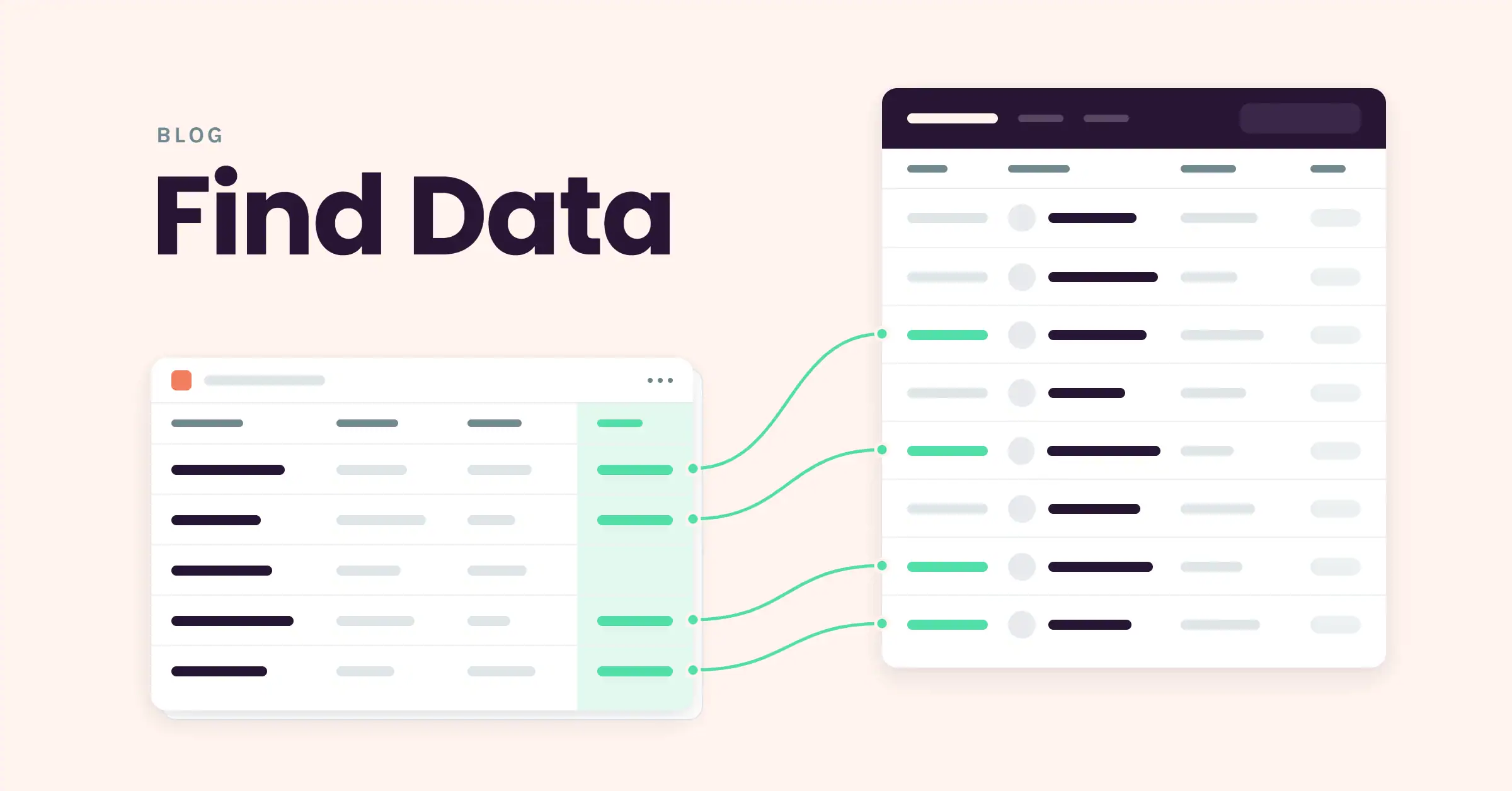
Cloudingo’s Find Data is a Salesforce tool that matches records in a CSV file to existing Salesforce records and returns to the fields you choose, such as Salesforce IDs, owners or account types, in an exportable report. It doesn’t import or change any Salesforce data. Most people know Cloudingo for dedupe, and the easiest way to think about Find Data is as the Import Wizard’s cousin.
- Import Wizard takes a CSV file and loads it into Salesforce. It scans for duplicates, creates new records, and updates existing ones.
- Find Data takes a CSV file and returns information from Salesforce. Nothing is imported or changed. It compares and extracts.
Think of it as the Import Wizard in reverse, or as a replacement for VLOOKUPs. You still start with a CSV and still use Cloudingo’s match criteria. The difference is that you tell Cloudingo which field data you want back.
Example: adding Salesforce IDs to an ERP export
Say your company keeps contact records in a downstream ERP system that isn’t synced to Salesforce. You need to tie those contacts to the right Salesforce records.
- Export the contacts from your ERP into a CSV file.
- Run the file through Find Data.
- Find Data finds the matching contacts in Salesforce.
- If Salesforce has information your file is missing, such as the Salesforce ID, you can append it to your file.
Now both systems can be tied together through the Salesforce ID. The comparison also works the other way. If your file has values Salesforce is missing, you can see that too.
How to match a CSV file to Salesforce records, step by step
- Open Find Data from the Cloudingo toolbar and start the wizard.
- Upload your CSV file and choose the Salesforce object you want to search, such as leads, contacts, or accounts. Find Data works with standard and custom objects.
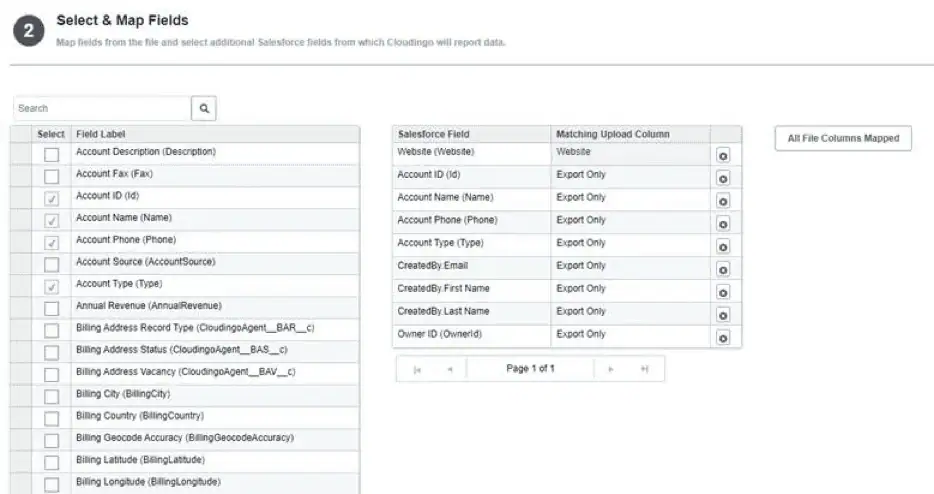
- Map your columns. Tell Cloudingo which columns in your file correspond to which Salesforce fields, for example, account name, email, phone, or zip code.
- Choose your match criteria. You can run several scans at once, such as email first, then name and city, and Cloudingo will show you how each record was found.
- Pick the field data you want back. You can pull data from any field on the object, like owner, account type, current address, etc.
- Review and filter your results. Look at records with zero matches, exactly one match, or multiple matches, and see how each record was matched.
- Export the results to a CSV to share or use in another system.
Pro tip: work in passes
You don’t have to find every record in one scan. A common approach is to go from the strongest match to the loosest:
- First scan: match on your most reliable identifier, like email.
- Second scan: take the records with zero matches, export them, and load them into a new Find Data file.
- Next scan: try a looser combination, like first name, last name and another identifying field.
Each pass works on a smaller list of remaining rows. Name your filters clearly, for example “found by email” or “found by name and company”, so you know how each record was matched.
When should you use Find Data?
Find Data fits any time you have an outside list and need answers from Salesforce.
- Tie external systems to Salesforce. Append Salesforce IDs to ERP, billing or marketing exports so they stay connected.
- Vet a list before you load it. Check what’s already in Salesforce so you don’t create duplicates. Some teams use Find Data first to avoid bringing the same records into the system.
- Enrich a list with Salesforce data. Starting with 200 target accounts, find out who owns each one, the account type, and the last opportunity date.
- Update a siloed system. Pull data out of Salesforce for tools that don’t integrate with it.
- Replace manual VLOOKUPs. If you regularly compare spreadsheets to Salesforce exports in Excel, Find Data does that comparison for you.
- Support migrations and clean-up projects. Match incoming records to existing ones before you decide what to create, update, or merge.
- Pull related records. Start from a list of account names and get back the related contacts, their record IDs, and email addresses.
Find Data vs. the Import Wizard: Which one do I need?
| Find Data | Import Wizard | |
|---|---|---|
| Starts with | A CSV file | A CSV file |
| Main goal | Compare and extract information from Salesforce | Load data into Salesforce |
| Changes Salesforce records? | No | Yes (creates and updates) |
| Output | An exportable report of matches and the fields you chose | New and updated Salesforce records |
| Use it when you want to… | Learn something from Salesforce about a list | Put data into Salesforce |
A good rule of thumb: if you want to put data into Salesforce, use the Import Wizard. If you want to learn something from Salesforce about a list you already have, use Find Data.
Find Data FAQ
No. Find Data only reads from Salesforce. It compares your file to existing records and exports the results. Nothing is imported, updated, or deleted.
Find Data works with standard and custom Salesforce objects, including leads, contacts, and accounts.
The Import Wizard loads a CSV into Salesforce, creating and updating records. Find Data uses the same CSV-and-match-criteria approach but only returns information from Salesforce.
Yes. Instead of exporting Salesforce data and building VLOOKUPs in Excel, you upload your file, map columns, set match criteria, and choose which Salesforce fields to return.
Yes. Cloudingo offers a 10-day free trial, and no credit card is required.
Try it with your own list
The quickest way to understand Find Data is to run a real file through it. Bring a CSV with a few hundred records and see what comes back.