October 30, 2026
How to Audit Your Salesforce Data Before Annual Planning
Step 1: Capture your year-end data quality baseline (Data Quality Dashboard)
Before you plan, you need two things: a headline number for data health, and a view of where the problems cluster. The baseline also gives you something to measure next year against, and that matters when you ask for time or budget to fix things.
In Cloudingo: Start with Data Quality → View. It gives you a year-end snapshot on one screen. The Data Quality Score is calculated weekly and kept as history, so you can show leadership how data health trended this year, not just where it stands today.
What to record before you plan:
| Dashboard area | What to capture | Why it matters for planning |
|---|---|---|
| Data Quality Score | Current score and the trend over the year | A simple headline number for your planning deck and a baseline to measure next year against |
| Duplicates by Object | Estimated duplicate count for Leads, Contacts, Accounts | Duplicates inflate pipeline, skew attribution, and waste enrichment and AI spend |
| Top Issues/Actions | Warnings and errors flagged | These cause failed merges and automation errors; clear them before new projects add load |
| Duplicate Source Report | Top users creating duplicates, by Owner or Created By | Points to the process, team, or integration that needs a fix before next year |
| Inactive Owners | Records still owned by inactive users | Territory and routing changes depend on clean ownership |
| Inactive Picklist Values | Retired values still on records | Common blocker for new stages, segments, or product lines |
| Required Field Usage | Fields below 100% populated | Shows where reporting and automation already have gaps |
| Account and Contact Analysis | Accounts with no Contacts or Opportunities; Contacts with no Account | Reveals white space and orphaned records ahead of account planning |
| New/Modified Records | 360-day creation and update trend | Shows growth rate and seasonality, useful for capacity planning |
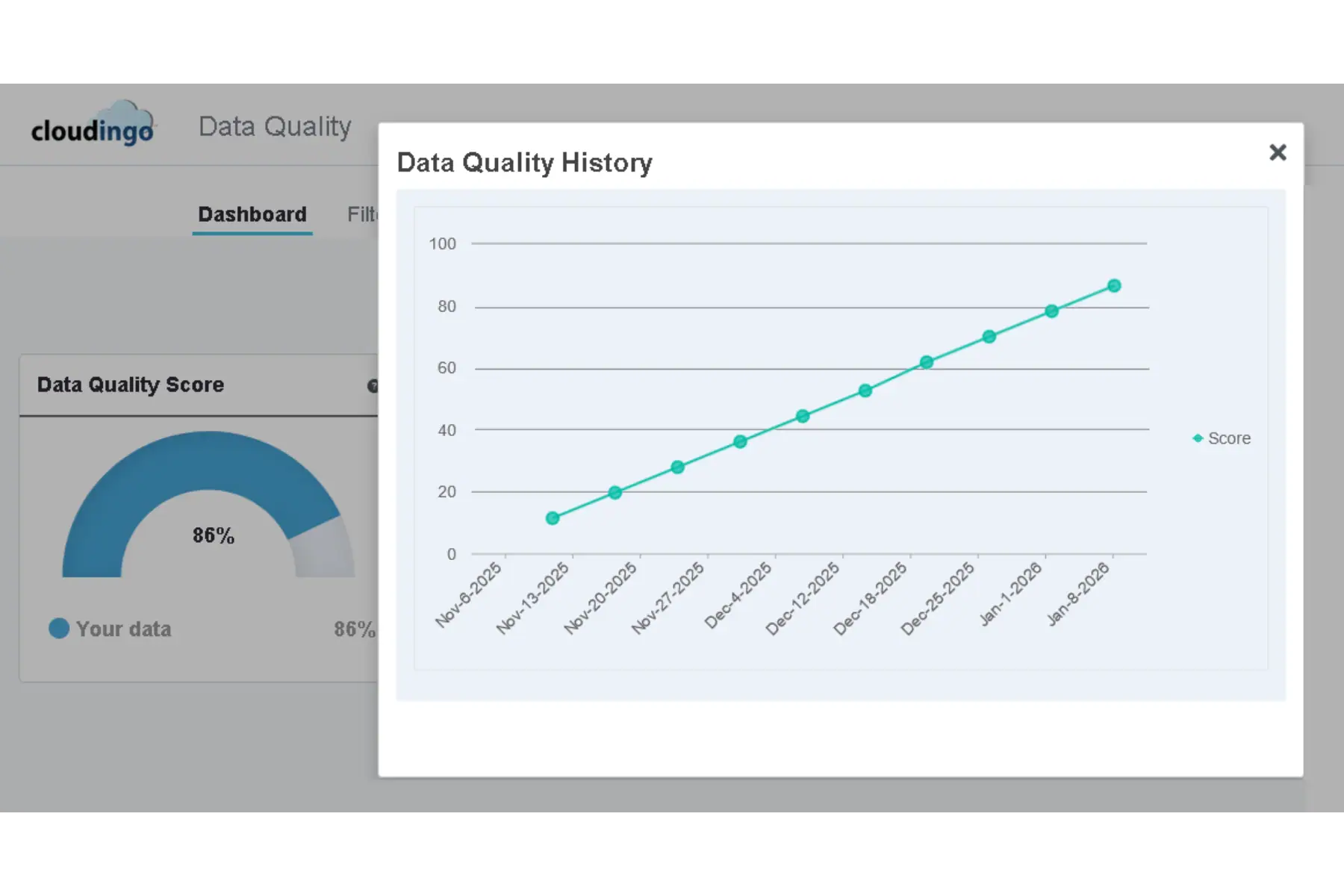
Because the score is calculated weekly, fixes you make today won’t show up in it until the next calculation. Capture your baseline before you fix anything, and screenshot or export what you need for your planning materials. Several issues have a Fix It option. Hold off on those until Step 5 so you can prioritize them against next year’s plans.
Step 2: Audit the fields next year’s plans depend on (Field Analysis)
An overall score can look healthy while the specific fields your plans rely on are half empty or full of invalid values. Routing, scoring, segmentation, and dashboards all depend on a handful of fields, so audit those directly.
In Cloudingo: Run Field Analysis on Leads, Contacts, Accounts and Opportunities, plus any custom object central to your plans. Go to Reports → Field Analysis → Start Wizard and pick the object. Use Bulk API for objects with large record volumes and turn on every Invalid Data Analysis option: picklist, text, number, email, and inactive owner. If a plan only concerns recent records, such as leads created this year, use the optional date range.
When you review the exported CSV, look for:
- Fields your plans will lean on. List the fields behind next year’s routing, segmentation, scoring, and dashboards, such as Industry, Employee Count, Region, Lead Source, and Product Interest. Any of them well below full population puts that plan at risk.
- Invalid values, not just empty ones. A field can look healthy on fill rate while holding retired picklist values, invalid emails, or values too long for the field. Those break automation and reporting just as badly as blanks.
- Clutter to retire. A useful starting point: fields used on fewer than 10% of records are candidates to remove or consolidate, which frees room for the new fields your plans will add. Confirm the business reason with each field’s owner first, then check what references the field. Salesforce’s Where is this used? button on custom fields is a good start, but also check integration field mappings, which won’t show up there.
- Duplicate fields. Two or more fields holding the same information should be consolidated before you build new reporting on either.
- Fields to make required. Important fields that are only sometimes filled are good candidates for required status going into the new year. Decide how to require them. Field-level required applies to integrations and API loads too, so new records from a tool that doesn’t send that field will fail. A page layout requirement or a validation rule scoped to user entry is often the safer choice.
If you’re comparing this approach with Salesforce’s native tools, see Cloudingo vs. Salesforce.
Step 3: Review org configuration and this year’s changes (Cloudingo Intelligence)
Data problems often start with configuration: a new integration, a package update, a field someone added mid-year. Reviewing what’s installed and what changed tells you where problems are likely coming from, and what next year’s plans will add on top.
In Cloudingo: Open Intelligence → View and review these tiles with next year’s plans in mind:
- Installed Applications. Every managed package in the org, with version, publisher and potential issues. Use it to take stock of your stack: which tools are being added, replaced or retired next year, and which ones write data into Salesforce.
- Salesforce API Usage. New integrations and enrichment tools use API calls. API limits are a rolling 24-hour allocation, so check usage on a normal busy day, not a quiet one. If you’re already running high, plan for that before adding more.
- Custom Classes and Triggers. Look for anything on a retired API version. Code that needs updating is better scheduled now than discovered mid-project.
- Idle Users and Admin-User Ratio. Idle users point to license savings for the budget conversation. The admin-user ratio is a fair input to any request for more admin capacity.
- Salesforce Logins. Useful for spotting third-party apps you’ve forgotten are connected.
Then switch to the Alerts tab. If you’ve had alerts enabled this year, export them to CSV for a record of fields, objects, apps and triggers added or changed. Put those changes side by side with the Data Quality Score trend from Step 1. If a drop lines up with a new integration or field change, start looking there.
If alerts aren’t enabled yet, turn on the App Updates, Data Quality, and API & Storage categories now. With a weekly email summary, next year’s review starts with a full record.
Step 4: Map each initiative to the data it assumes
This step connects the audit to the plan. Take your top three to five initiatives for next year and find each one in the table below. If you don’t have the list yet, ask your RevOps lead for the draft. It’s worth asking now anyway.
The middle column is what the initiative quietly assumes about your data. The right column is where to check it.
| If your plan includes... | It assumes... | Check it with |
|---|---|---|
| New territories, segments, or routing | Ownership is current and segmentation fields are complete and valid | Inactive Owners; Field Analysis on Industry, Region, Employee Count; Inactive Picklist Values |
| A new product line or sales motion | Room for new fields and picklist values, and clean stages | Field Analysis for low-use fields to retire; Inactive Picklist Values |
| A new tool or integration (enrichment, MAP, intent data, list building) | New records won't create duplicates on arrival | Duplicate Source Report; Installed Applications; API Usage; Cloudingo Import filters and rules for incoming lists |
| AI, Agentforce, or automation initiatives | Records are complete, consistent, and not duplicated | Data Quality Score; Duplicates by Object; Required Field Usage |
| New KPIs, dashboards, or board reporting | The fields behind each metric are populated and valid | Field Analysis on each KPI's source fields |
| Account-based or expansion plays | Accounts are deduplicated, with Contacts and Opportunities linked | Duplicates by Object on Accounts; Account and Contact Analysis |
| Team changes, reorgs, or new hires | Records can be reassigned cleanly and nothing is owned by departed users | Inactive Owners; Idle Users; Owner Mapping |
| Headcount or budget requests | Evidence of the current workload and cost | Admin-User Ratio; Idle Users; Data Quality Score trend |
For each initiative, write down one gap your audit uncovered. Those gaps become your prep list in Step 5.
Step 5: Build a pre-launch data prep list
Aim for a short list, ideally five items or fewer, of data work that has to be done before your first initiative launches. Order it by which initiative launches first, not by which issue looks worst.
Most items will fall into one of these, each with a Cloudingo tool that handles it:
- Clear the blockers. Use the Fix It options on the Data Quality Dashboard to remap inactive picklist values and inactive owners. These cause failed merges and automation errors, so do them first. Agree with sales ops on timing before reassigning ownership of open opportunities, because mid-quarter changes move forecast numbers.
- Dedupe the objects your plans touch. Run your dedupe filters and merges on the objects behind your first initiatives. Before a large merge, use the merge preview, or the Automation Preview report if it’s enabled on your account, to confirm which values the surviving record will keep. Also check with whoever owns your connected systems, especially marketing automation, so records that sync by Salesforce ID are handled on their side.
- Fix the fields your plans need. Use the Data Maintenance update job to standardize and fill the fields flagged in Step 2 and retire low-use fields once you’ve cleared their dependencies.
- Put prevention in place before new data arrives. For any new tool, list, or integration, set up Cloudingo scheduled dedupe automation so new records are checked as they come in. Cleaning up after go-live costs far more.
- Set your measuring stick. Record this year’s Data Quality Score and duplicate counts as next year’s baseline, and turn on the Data Quality alert so you hear about drops as they happen.
Before any large job, follow your org’s backup policy and confirm that Undo & Restore is enabled on your account.
Bring it to planning
Your prep list does the best in the room where timelines get set.
Put it on one slide:
- Data Quality Score trend for the year
- Duplicate counts for the objects your plans touch
- One data risk per initiative, from Step 4, with the prep work that clears it
That turns “we need time for data cleanup” into a specific request tied to plans leadership has already approved.
Salesforce planning season checklist
☐ Capture Data Quality Score, duplicate counts, and top issues from the Data Quality Dashboard before making any fixes
☐ Run Field Analysis with invalid-data options on Leads, Contacts, Accounts, and Opportunities
☐ Review Installed Applications, API Usage and Idle Users in the Intelligence Dashboard
☐ Export this year’s Intelligence alerts, or enable alerts if they’re off
☐ Map each of next year’s initiatives to its data assumptions (Step 4)
☐ Agree on a pre-launch prep list of five items or fewer
☐ Check dependencies, downstream systems, and timing before retiring fields, merging, or reassigning owners
☐ Put duplicate prevention in place for any new tool or data source before launch
☐ Bring a one-slide summary to planning
Frequently asked questions
Check your overall data quality baseline, the fields behind next year’s routing, scoring, and reporting, and any configuration changes made this year. Then match each planned initiative to the data it depends on, so gaps surface before launch instead of after.
AI and automation depend on records that are complete, consistent, and not duplicated. Start with your duplicate counts by object, required field usage, and overall data quality score. Gaps in any of these will show up in AI output.
Fill rate tells you whether a field has a value. Validity tells you whether that value is usable. A field can be fully populated and still hold retired picklist values, invalid emails, or values too long for the field, and those break automation just as badly as blanks.
Set up duplicate prevention before the integration goes live, not after. In Cloudingo, that means filters and rules and scheduled dedupe automation, plus checking the Duplicate Source Report to see which users and integrations create duplicates today.
Often, but choose the method carefully. Field-level required applies to every API insert, so integrations that don’t send the field will fail. A page layout requirement or a validation rule scoped to user entry gets you better data without breaking integrations.
A full audit before annual planning is a good habit, because that’s when next year’s plans get built on top of your data. Between audits, the weekly Data Quality Score and alerts on drops will catch problems as they happen.
Where to go from here
Already using Cloudingo? Your Cloudingo team can walk through the dashboards with you, help interpret what you find, and recommend filters, rules, and jobs for your prep list. Bring your list of next year’s initiatives to a working session and we’ll go through Step 4 together. Reach out to your rep or email sales@cloudingo.com.